Self-hosting with pfSense, Cloudflare, Traefik, CrowdSec and Docker
Self-hosting gives you complete ownership of your data, but exposing services to the internet requires a security-first mindset. This project details my approach to building a secure, scalable self-hosting stack. By combining the routing power of pfSense, the edge protection of Cloudflare, the community-driven defense of CrowdSec, and the flexibility of Docker, I’ve created an environment that balances accessibility with hardened security.
Configuring pfSense
Network Segmentation
Security starts with isolation. I use pfSense to create a separate VLAN for my self-hosted services, ensuring that even if a container is compromised, it cannot access my main LAN or administrative interfaces.
1. Interface Assignments
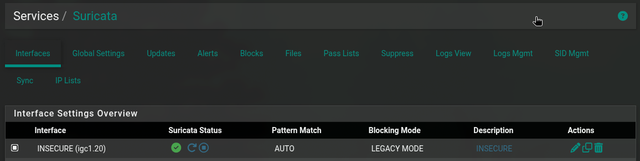
First, I created a dedicated VLAN and assigned it to a new interface named INSECURE. This segregates traffic at Layer 2, preventing direct communication with my trusted devices on the LAN.
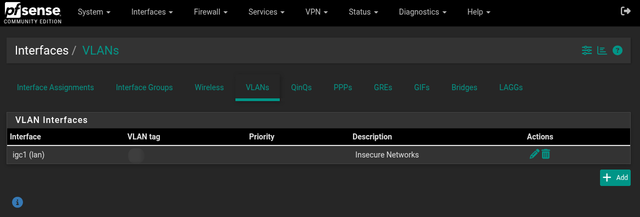
2. Creating Aliases
To keep firewall rules clean and manageable, I defined an alias named private_networks. This alias contains all my local subnets. Using aliases allows me to update network definitions in one place without modifying every single firewall rule.
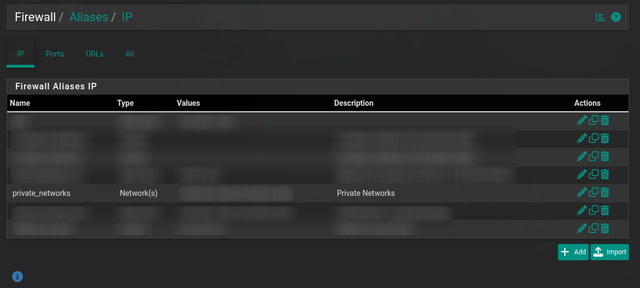
3. Firewall Rules
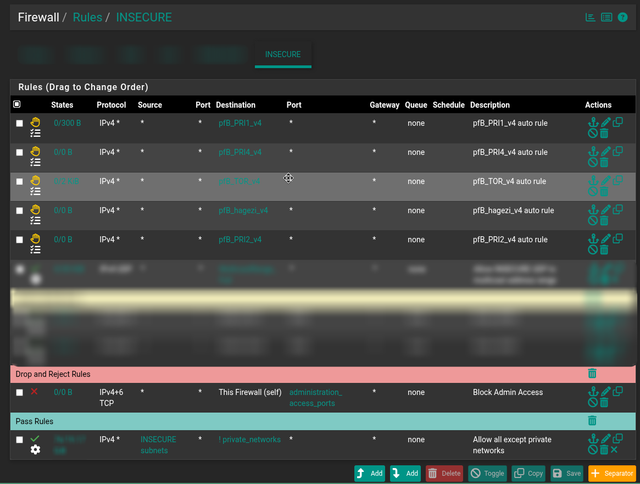
The firewall rules for the INSECURE interface follow a specific order to ensure isolation:
- Block Admin Access: Explicitly block access to the pfSense web configurator and SSH ports to prevent privilege escalation attempts.
- Isolate from Private Networks: The key rule here is an “Allow” rule with a destination of
! private_networks(not private networks). This allows the services to access the internet (for updates, APIs, etc.) but blocks them from initiating connections to any of my internal devices.- Pro Tip: For tighter security, restrict this allow rule to only specific ports (e.g., 53, 80, 443, 123) rather than allowing all outbound traffic. This prevents compromised containers from connecting to C&C servers on non-standard ports.
This configuration effectively creates a “one-way” street where I can manage the server, but the server cannot probe my network.
Proactive Defense with pfBlockerNG
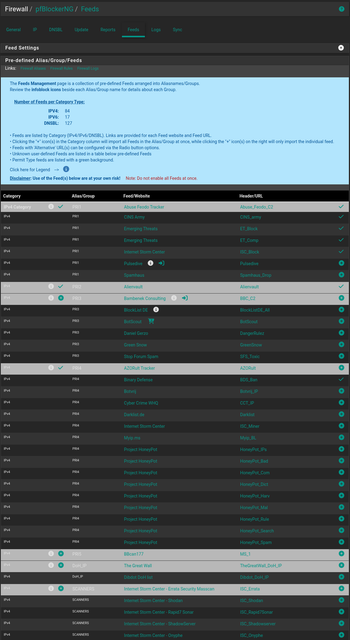
While firewall rules handle internal segmentation, I use pfBlockerNG to filter traffic at the edge. pfBlockerNG is a powerful package that automatically downloads and maintains lists of known malicious IP addresses and domain names, blocking them before they can even attempt a handshake with my network.
I’ve configured several high-priority feeds to block botnets, known exploiters, and bad actors. Here are the specific feeds I have enabled:
PRI1 (High Priority)
- Abuse Feodo Tracker: Tracks Feodo (also known as Cridex or Bugat) botnet command and control (C&C) servers.
- CINS Army: A threat intelligence list based on sentinel nodes.
- Emerging Threats (ET_Block & ET_Comp): A widely respected source for blocking known compromised hosts and malicious traffic.
- Internet Storm Center (ISC_Block): SANS ISC’s list of current top attackers.
PRI2
- AlienVault: A reputation feed from AT&T Cybersecurity (formerly AlienVault) identifying IPs associated with malicious activity.
PRI4
- Binary Defense (BDS_Ban): Focuses on banning IPs involved in suspicious scanning and attack behaviors.
By stacking these feeds, my firewall silently drops traffic from millions of known bad IPs, significantly reducing the “noise” in my logs and the load on my downstream services.
Deep Packet Inspection with Suricata
To inspect the actual content of the traffic, I run Suricata on the INSECURE interface. Unlike a simple firewall that looks at IP addresses and ports, Suricata analyzes packet payloads to detect patterns of known attacks, such as SQL injection, exploit attempts, and malware signatures.
Tuning and Optimization
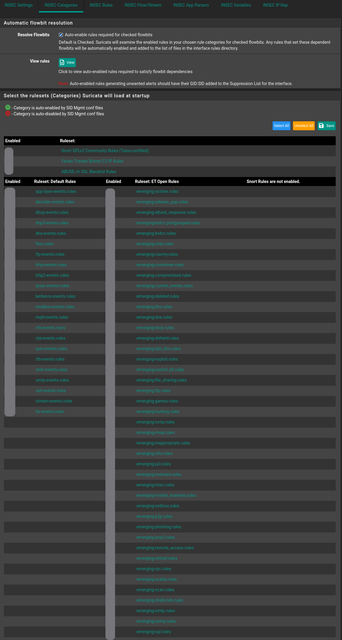
Running an Intrusion Detection/Prevention System (IDS/IPS) can be resource-intensive, so tuning is critical. I’ve disabled categories that don’t apply to my environment (e.g., emerging-scada.rules or emerging-games.rules) to reduce memory usage and CPU load.
Blocking Mode
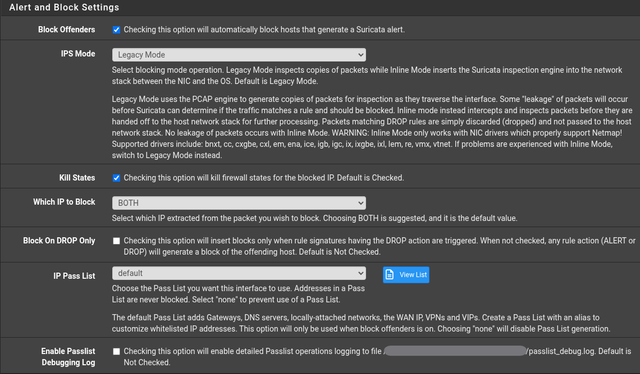
I run Suricata in Legacy Mode with “Block Offenders” enabled. While Inline Mode offers superior security by dropping malicious packets before they enter the network, it can be unstable on certain hardware NICs. Legacy Mode inspects copies of packets, which means a single malicious packet might leak through before the block is applied, but it offers rock-solid stability for a home lab environment. This configuration proactively protects the network by adding the IP addresses of attackers to a temporary block list. I’ve configured the Ban Time to a reasonable duration—long enough to discourage automated scanners but short enough to allow legitimate traffic (in case of a false positive) to eventually retry.
The Docker side
Application Layer Defense with Docker
Moving down the stack, I use Docker to host my applications, orchestrated by Traefik as the reverse proxy.
The Architecture
- Traefik: Traefik handles SSL termination (using Let’s Encrypt via Cloudflare DNS challenge) and routes requests to the appropriate containers based on hostnames.
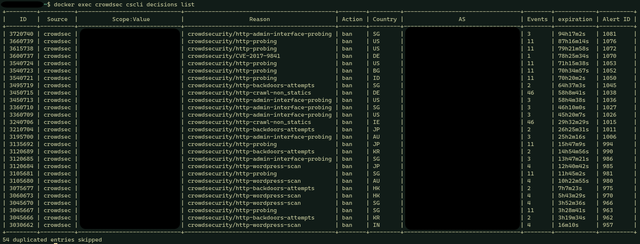
- CrowdSec: I integrate CrowdSec directly into Traefik using a middleware plugin. Every request is checked against CrowdSec’s local decision engine. If an IP is flagged (e.g., for aggressive crawling or CVE attempts), the request is dropped with a 403 Forbidden before it ever reaches the application.
- Sablier: To conserve resources, I use Sablier. It puts non-critical containers to sleep when unused and wakes them up automatically when Traefik receives a request. Note that this introduces a slight “cold start” delay on the first request while the container spins up.
Configuration
Below are the sanitized configurations for this stack
docker-compose.yaml
This composes the core infrastructure services.
services:
  traefik:
    image: traefik:v3.0
    container_name: traefik
    restart: unless-stopped
    security_opt:
      - no-new-privileges:true
    ports:
      # Optional: Maps ports to host
      - "80:80"
      - "443:443"
    environment:
      - CF_DNS_API_TOKEN=$CF_DNS_API_TOKEN
      - CF_API_EMAIL=$CF_API_EMAIL
    volumes:
      - /var/run/docker.sock:/var/run/docker.sock
      - ./traefik/traefik.yaml:/etc/traefik/traefik.yaml:ro
      - ./traefik/config.yaml:/etc/traefik/config.yaml:ro
      - ./traefik/certs:/var/traefik/certs:rw
      - ./traefik/plugins-storage:/plugins-storage
    networks:
      - traefik-network
    labels:
      - "traefik.enable=true"
      # Global HTTP -> HTTPS redirect
      - "traefik.http.routers.traefik.entrypoints=web"
      - "traefik.http.routers.traefik.rule=Host(`traefik.local.example.com`)"
      - "traefik.http.middlewares.traefik-https-redirect.redirectscheme.scheme=https"
      - "traefik.http.routers.traefik.middlewares=traefik-https-redirect"
      # Secure Router
      - "traefik.http.routers.traefik-secure.entrypoints=websecure"
      - "traefik.http.routers.traefik-secure.rule=Host(`traefik.local.example.com`)"
      - "traefik.http.routers.traefik-secure.tls=true"
      - "traefik.http.routers.traefik-secure.tls.certresolver=cloudflare"
      - "traefik.http.routers.traefik-secure.service=api@internal"

  crowdsec:
    image: crowdsecurity/crowdsec:latest
    container_name: crowdsec
    environment:
      GID: "${GID-1000}"
      COLLECTIONS: "crowdsecurity/traefik crowdsecurity/http-cve crowdsecurity/http-dos crowdsecurity/linux crowdsecurity/nginx crowdsecurity/base-http-scenarios <other_needed_scenarios>"
      BOUNCER_API_KEY: "YOUR_GENERATED_BOUNCER_KEY"
    volumes:
      - /var/run/docker.sock:/var/run/docker.sock
      - ./crowdsec/acquis.yaml:/etc/crowdsec/acquis.yaml
      - ./crowdsec/db:/var/lib/crowdsec/data/
      - ./crowdsec/config:/etc/crowdsec/
      # Mount logs from other services for analysis
      - ./traefik/logs:/var/log/traefik/:ro
    networks:
      - traefik-network
    security_opt:
      - no-new-privileges:true
    restart: unless-stopped
  sablier:
    container_name: sablier
    image: sablierapp/sablier:latest
    restart: unless-stopped
    networks:
      - traefik-network
    ports:
      - 10000:10000
    volumes:
      - /var/run/docker.sock:/var/run/docker.sock
      - ./sablier/sablier.yaml:/etc/sablier/sablier.yaml:ro

networks:
  traefik-network:
    external: true
traefik.yaml
Static configuration defining entry points, the CrowdSec plugin, and the Cloudflare certificate resolver.
global:
  checkNewVersion: true
  sendAnonymousUsage: false

entryPoints:
  web:
    address: :80
    http:
      middlewares:
        - crowdsec@file # Apply CrowdSec to all HTTP traffic
  websecure:
    address: :443
    asDefault: true
    http:
      middlewares:
        - crowdsec@file # Apply CrowdSec to all HTTPS traffic
      tls:
        certresolver: cloudflare

providers:
  docker:
    endpoint: "unix:///var/run/docker.sock"
    exposedByDefault: false
    network: traefik-network
  file:
    filename: /etc/traefik/config.yaml

certificatesResolvers:
  cloudflare:
    acme:
      email: "[email protected]"
      storage: /var/traefik/certs/acme.json
      dnsChallenge:
        provider: cloudflare
        resolvers:
          - "1.1.1.1:53"

experimental:
  plugins:
    bouncer:
      moduleName: "github.com/maxlerebourg/crowdsec-bouncer-traefik-plugin"
      version: "v1.4.6"
    sablier:
      moduleName: "github.com/sablierapp/sablier-traefik-plugin"
      version: "v1.1.0"
config.yaml
Dynamic configuration for middlewares. This is where the CrowdSec bouncer is configured to talk to the CrowdSec container.
http:
  middlewares:
    # ------------------------------------------------
    # Crowdsec Middleware
    # ------------------------------------------------
    crowdsec:
      plugin:
        bouncer:
          enabled: true
          crowdsecMode: live
          crowdsecLapiKey: "YOUR_GENERATED_BOUNCER_KEY" # Must match key in CrowdSec container
          crowdsecLapiHost: "crowdsec:8080"
          crowdsecLapiScheme: http
          forwardedHeadersTrustedIPs:
            ...your list of trusted ips...

    # ------------------------------------------------
    # Security Headers
    # ------------------------------------------------
    default-security-headers:
      ...

    # ------------------------------------------------
    # Sablier Middleware
    # ------------------------------------------------
    my-sablier:
      plugin:
        sablier:
          sablierUrl: "http://sablier:10000"
          sessionDuration: 1h
          dynamic:
            displayName: Sablier
            theme: hacker-terminal
Container Hardening
Beyond network isolation and traffic filtering, hardening individual containers is a critical defense-in-depth strategy. If an attacker manages to exploit a vulnerability in a web application, these measures limit the “blast radius,” preventing them from gaining root access to the host or modifying critical files.
Here is a demo configuration for a hardened whoami service, implementing several best practices:
  whoami:
    image: traefik/whoami
    container_name: whoami
    # 1. Run as a non-root user (UID:GID)
    user: "99:100" # running as user "nobody" group "users"
    restart: unless-stopped
    networks:
      - traefik-network

    # 2. Disable TTY and standard input to prevent interactive shell access
    tty: false
    stdin_open: false

    # 3. Read-only filesystem
    # The container cannot modify its own files. If the app needs to write, use tmpfs or volumes.
    read_only: true

    # 4. Prevent privilege escalation
    # Ensures the process cannot gain new privileges (e.g., via setuid binaries)
    security_opt:
      - no-new-privileges:true

    # 5. Drop all capabilities
    # Remove all kernel capabilities, then add back only what is strictly necessary (none in this case).
    cap_drop:
      - ALL

    # 6. Secure /tmp
    # Mount /tmp as noexec (cannot run binaries), nosuid, and nodev.
    tmpfs:
      - /tmp:rw,noexec,nosuid,nodev,size=64m

    # 7. Resource Limits
    # Prevent this container from exhausting host resources (DoS protection).
    deploy:
      resources:
        limits:
          cpus: '0.50'
          memory: 128M
          pids: 50

    # 8. Limit Logging
    # Prevent log file exhaustion attacks.
    logging:
      driver: "json-file"
      options:
        max-size: "10m"
        max-file: "3"

    labels:
      - "traefik.enable=true"
      - "traefik.http.routers.whoami.rule=Host(`whoami.local.example.com`)"
      - "traefik.http.routers.whoami.entrypoints=websecure"
      - "traefik.http.routers.whoami.tls.certresolver=cloudflare"
      # Apply the security headers and CrowdSec middleware
      - "traefik.http.routers.whoami.middlewares=default-security-headers@file,crowdsec@file"
Key Hardening Steps Explained
- Non-Root User: By default, Docker containers run as root. Setting
user: "99:100"ensures that if the process is compromised, the attacker only has the privileges of a standard user. - Read-Only Filesystem:
read_only: truemakes the container’s filesystem immutable. An attacker cannot download malware, modify configuration files, or install backdoors. - Drop Capabilities:
cap_drop: - ALLremoves Linux kernel capabilities (likeNET_ADMINorSYS_ADMIN). Most web apps don’t need any special capabilities. - No New Privileges:
security_opt: - no-new-privileges:trueprevents the container process from gaining additional privileges usingsetuidorsetgidbinaries. - Resource Limits: Defining CPU and memory limits (
cpus,memory) prevents a compromised or buggy container from crashing the entire host server.
Securing further
For those looking to push security even further, consider these additional layers:
Hardening the Docker Socket
The configuration above mounts the raw /var/run/docker.sock into the Traefik and Sablier containers. While convenient, this is a significant security risk; if these containers are compromised, an attacker gains root-level control over the host.
- Best Practice: Use a proxy like Technativa’s Docker Socket Proxy. This allows you to restrict Traefik to
GETrequests only (read-only access) and limit Sablier to onlystart/stopcommands, significantly reducing the attack surface.
Cloudflare Proxy (Orange Cloud)
While Cloudflare Tunnels inherently mask your origin IP, enabling Cloudflare’s Proxied (Orange Cloud) mode for your DNS records provides access to their global Web Application Firewall (WAF) and DDoS protection. This acts as a massive shield, filtering malicious traffic at the edge before it even touches your edge.
CrowdSec AppSec
Standard CrowdSec scenarios operate primarily by reading logs to ban IPs after bad behavior occurs. CrowdSec AppSec operates by inspecting the actual content of HTTP requests in real-time. This offers virtual patching and protection against specific web attacks like SQL Injection (SQLi) and Cross-Site Scripting (XSS), effectively acting as a WAF for your containers.
HAProxy (Alternative to Port Forwarding)
While Cloudflare Tunnels are excellent, some scenarios require direct external access (e.g., game servers or specific protocols). In these cases, instead of relying on simple Port Forwarding, which exposes your internal server’s specific port directly to the internet, consider using the HAProxy package on pfSense.
- Attack Surface Reduction: Consolidates all services behind a single exposed port (usually 443).
- Protocol Sanitization: HAProxy ensures traffic conforms to strict protocol standards before passing it to your backend.
- Backend Anonymity: External scanners interact with the hardened pfSense firewall, not your delicate Docker container.
Zero Exposure: VPNs and Overlay Networks
The most secure way to expose a service is to not expose it at all. For administrative dashboards (Portainer, SSH, database GUIs) or sensitive internal tools, public exposure should be avoided entirely.
- VPNs (Virtual Private Networks): Hosting a WireGuard or OpenVPN server on pfSense allows you to “dial in” to your home network securely. To the outside world, your services simply do not exist.
- Overlay Networks (Tailscale/ZeroTier): Tools like Tailscale create a mesh VPN that connects your devices directly, regardless of their physical location or firewall rules. By installing Tailscale on your server and your laptop/phone, you can access your services via a private IP address (e.g.,
100.x.y.z) without opening any ports or configuring complex routing. This approach effectively renders your services invisible to the public internet.
Advanced Host Hardening
For those wanting to secure the underlying Linux host beyond standard practices, Madaidan’s Linux Hardening Guide is an exhaustive resource on kernel self-protection and attack surface reduction.
- Note: This is an advanced guide. Some recommendations (like
kernel.unprivileged_userns_clone=0) may conflict with a standard Docker setup, so make sure you understand the changes you’re about to make and apply them selectively based on your threat model.